
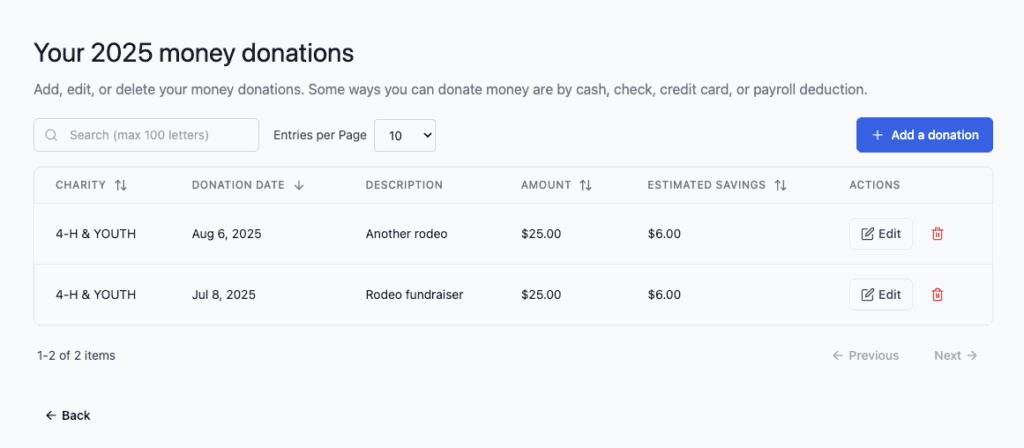
Money is where you track cash donations, checks, credit card donations, and payroll deductions. This screen shows all your monetary donations for the selected tax year.
What You’ll See
When you click View next to Money on the Dashboard, you will see:
- A search box – Find donations by charity name
- Column headers – Sort by Charity, Donation Date, Amount, or Estimated Savings
- List of donations – Each row shows one money donation
- Edit/Delete buttons – Modify or remove donations
- Pagination – Navigate through pages if you have many donations
Understanding the Columns
Charity
The name of the organization that received your donation.
Donation Date
The date you made the donation (month, day, year format).
⚠️ Important: The date must be in the correct tax year. You can only claim donations in the year they were made.
Amount
The dollar amount of your donation.
ℹ️ Tip: This should match the amount on your receipt or bank statement.
Estimated Savings
Based on your tax bracket, this shows approximately how much you could save on taxes from this donation.
⚠️ Important: This is an estimate only. Your actual tax savings depend on your specific tax situation.
Managing Your Money Donations
Editing a Donation
If you need to change information:
- Find the donation in the list.
- Click the Edit button (pencil icon) on the right.
- Update the information (date, amount, payment method, etc.).
- Click Save Changes.
Deleting a Donation
If you entered a donation by mistake:
- Find the donation in the list.
- Click the Delete button (trash icon) on the right.
- Confirm that you want to delete it.
⚠️ Warning: Deletion cannot be undone.
Searching for Donations
To find donations to a specific charity:
- Click in the Search box.
- Type the charity name (or part of it).
- The list filters to show only those donations.
ℹ️ Tip: Search is helpful if you donated to many charities and want to review donations to one organization.
How to Add a Money Donation
To add a new money donation:
- Click the Add a donation button on the Dashboard.
- Select Money from the dropdown.
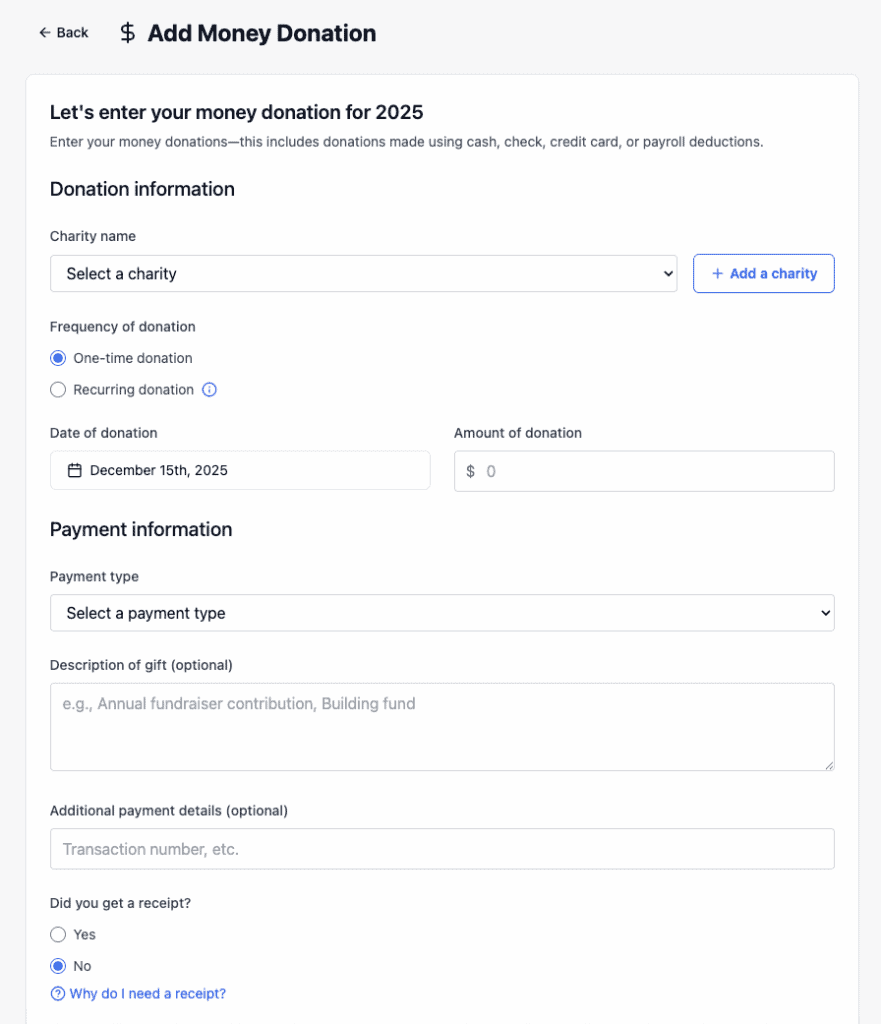
- Fill in the form with:
- Charity name (required)
- Frequency of donation (one-time or recurring)
- Date of donation (required)
- Amount (required)
- Payment type (cash, check, credit card, or payroll deduction)
- Description (optional – for example, “annual pledge” or “special campaign”)
- Receipt information (optional)
- Click Save Changes at the bottom when you’ve entered all data.
ℹ️ Tip: If you make recurring donations (for example, monthly), you can enter them as individual donations or enter the frequency and let Deductible Duck calculate the total.
Important Reminders
Keep Records
For every money donation, keep:
- Receipt – Shows the charity name, date, and amount
- Bank statement or credit card statement – Shows the transaction
- Cancelled check – For check donations
- Payroll records – For payroll deductions
⚠️ Important: The IRS requires written acknowledgment from the charity for donations of $250 or more.
Types of Money Donations
Deductible:
- Cash donations
- Check donations
- Credit card donations
- Payroll deductions to charity
- Donations via wire transfer or ACH
Not deductible:
- Donations to individuals (not charities)
- Donations to political campaigns
- Donations with the expectation of receiving goods/services in return
Qualified Charities
Money donations are only tax-deductible if given to qualified organizations:
- Religious organizations
- Educational institutions
- Charitable organizations
- Certain veterans’ organizations
- Qualified nonprofit organizations
ℹ️ Tip: When you donate, ask the organization if it’s a qualified charity or check the IRS website.
Recurring Donations
If you donate regularly (for example, monthly), you can:
- Add each donation individually for complete control
- Or enter it once and note the frequency
Either way, make sure the total is accurate for the tax year.
Going Back
To return to the Dashboard, click **Home