
Background
When you login to Deductible Duck, you are required to verify your identity for security purposes periodically. Deductible Duck sends you a secondary code to an account you control (your email). Once you receive it, you must enter your code into the login screen to confirm you are who we think you are. This is called Two Factor Authentication, more abbreviated as “2FA”. By default, Deductible Duck uses email to do this for your account.
As of January 2026, Deductible Duck supports two modes for Two Factor Authentication (2FA): Email and SMS. When you first sign up for an account, you get email as the default method to access your 2FA codes. When you upgrade to a paid account, you also can have the codes sent via SMS/text message.
How to Setup 2FA via SMS
First, login to Deductible Duck, which takes you to the Dashboard. Look on the left sidebar, click on your Personal Profile link.
When you access your Personal Profile, scroll past the information about your Tax Bracket and you will find this section:
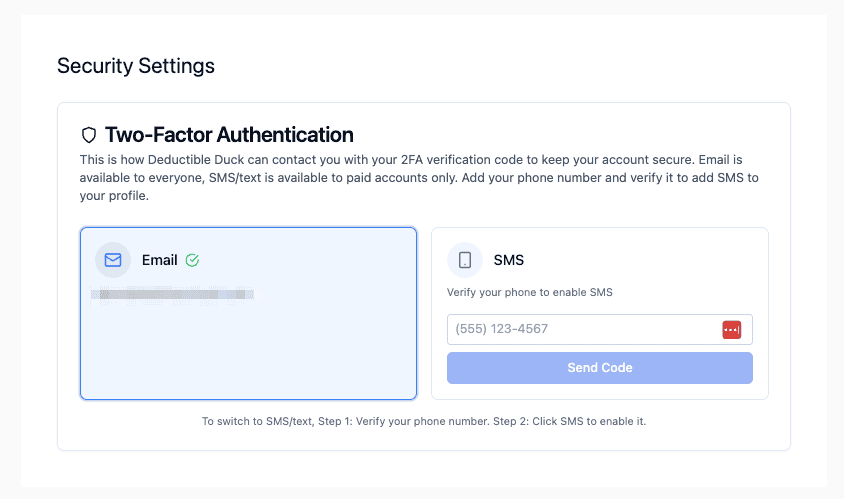
Your email address for your account will be showing on the left side in the blue box.
To add SMS as a 2FA method
Follow these steps:
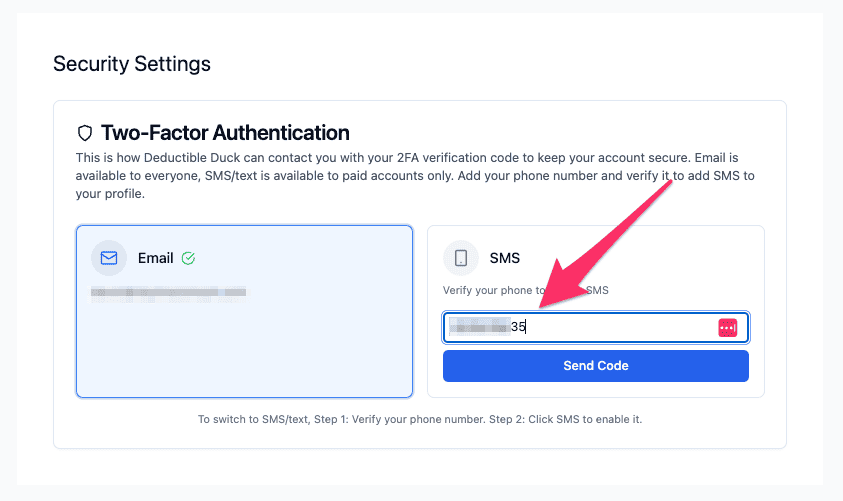
- Enter your MOBILE phone number in the field on the right box in white (area code + number). Once you do, it will enable the Send Code button:
- After that, click Send Code. This will send a message to your mobile phone to verify your device as yours.
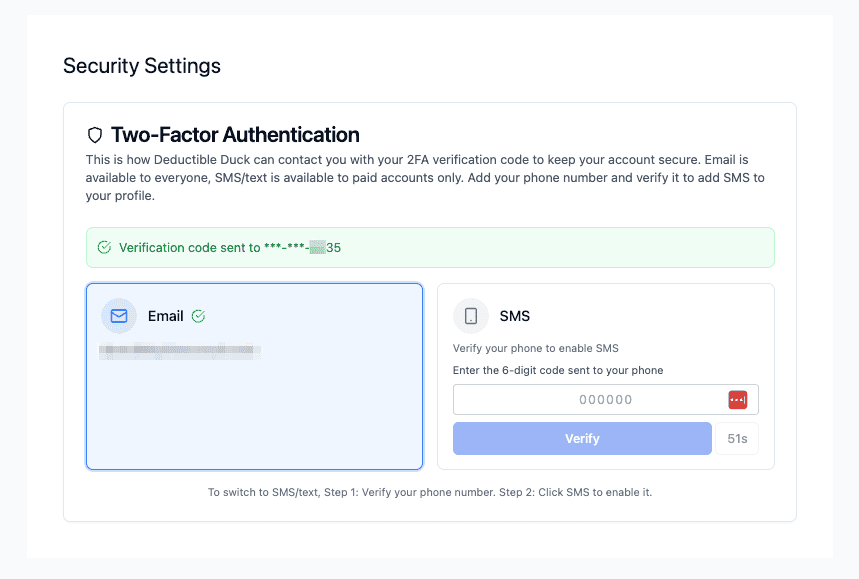
- Once you receive the code, enter the six digit code in the field and click Verify.
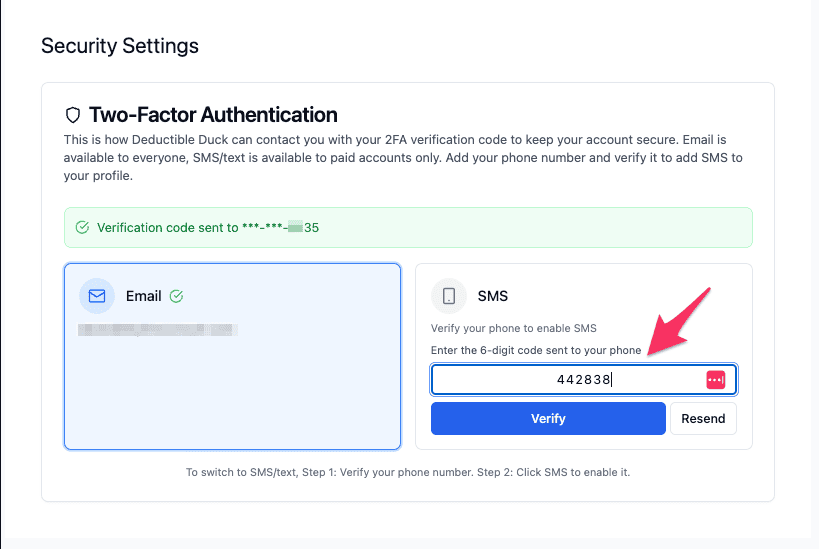
- If you enter the correct code, your mobile number is now verified and you can select it as your preferred 2FA method, so click that box and you’ve successfully selected SMS for 2FA

You can switch between email and SMS at any time, if you change devices and need to move the access around.
How do I change numbers for 2FA with SMS?
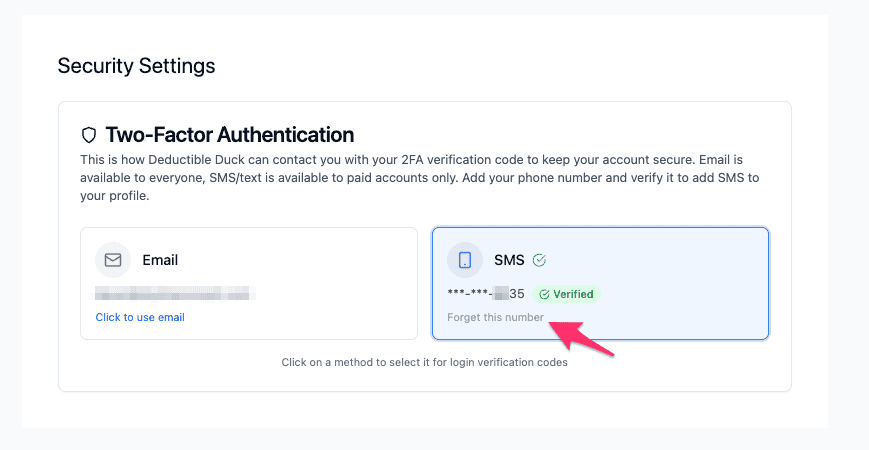
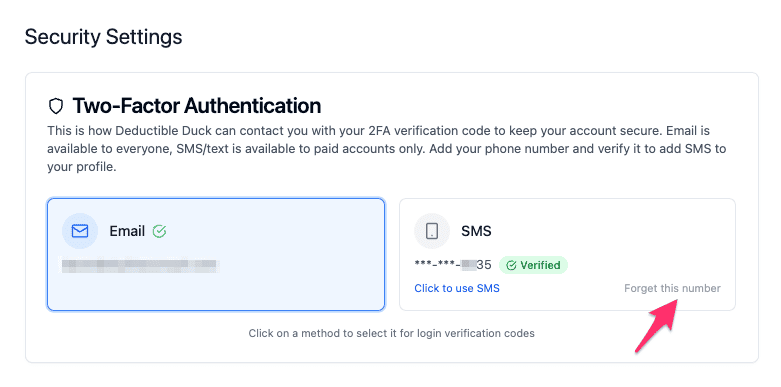
Click the Forget this Number link. The number will be released and you’ll be able to verify a new number, following the steps above.
If you have SMS setup for 2FA, the link is here:
And if you are using email but have a verified number, the link is here:
After clicking Forget this Number, you’ll see this:

And clicking Remove will clear the number:
