Keep proof of your donations right where you track them. DeductibleDuck lets you attach a photo or PDF receipt to any item donation, so your documentation stays organized and flows straight into your tax forms.
Note: Attachments are a paid feature and are available on item donations only (not stock, mileage, or cash donations).
What you can attach
- File types: JPG, PNG, WebP, HEIC (iPhone photos), or PDFs ONLY. Other types of files (e.g. CSV, TXT, Word Docs, etc) are not allowed.
- How many: One attachment per item donation
- Size limit: Up to 10 MB per file
You can add a receipt, a photo of the donated items, a store drop-off slip, or any PDF that documents the gift.
Adding a receipt while creating a donation
- Start a new item donation and fill in your items as usual.
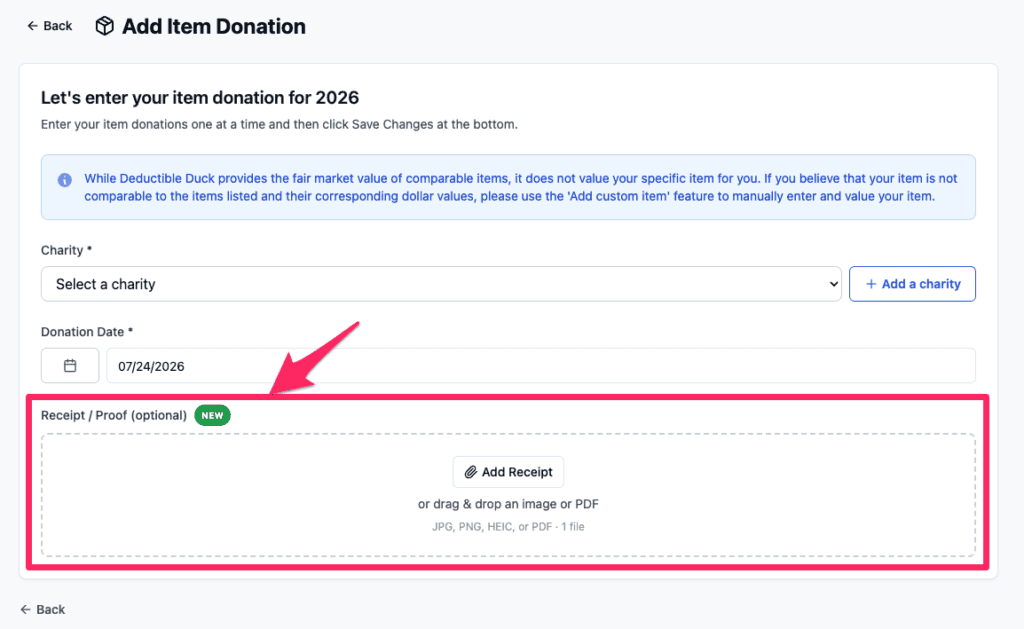
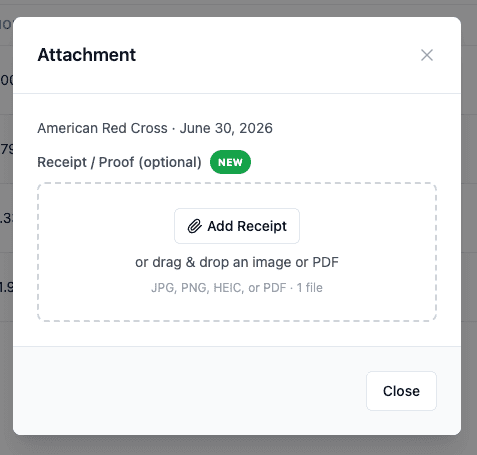
- Scroll to the Receipt / Proof (optional) section.
- Drag a file onto the upload area, or click to browse and choose a file from your device. On a phone, you can take a photo on the spot.
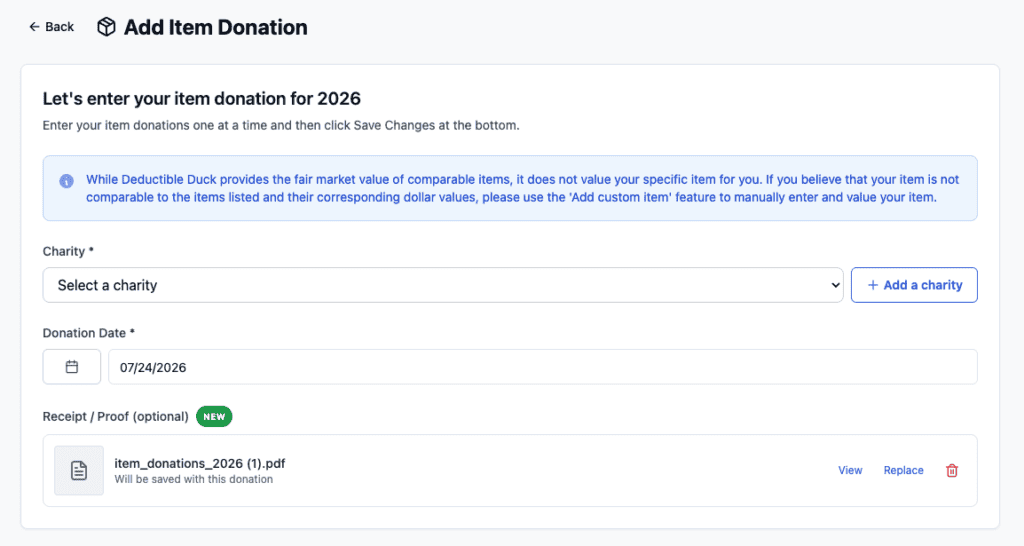
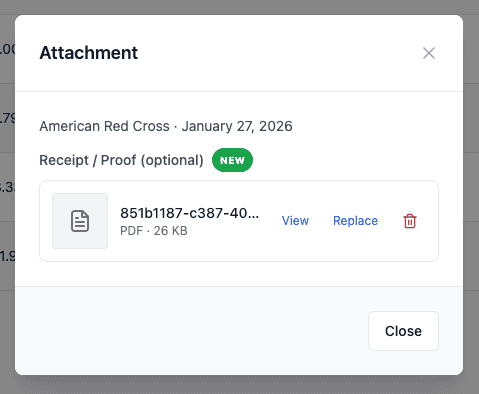
- A thumbnail preview appears (for images) or just a file name (PDFs) once your file is added. Finish and save your donation as normal, and the receipt is saved along with it.
Adding or changing a receipt on an existing donation
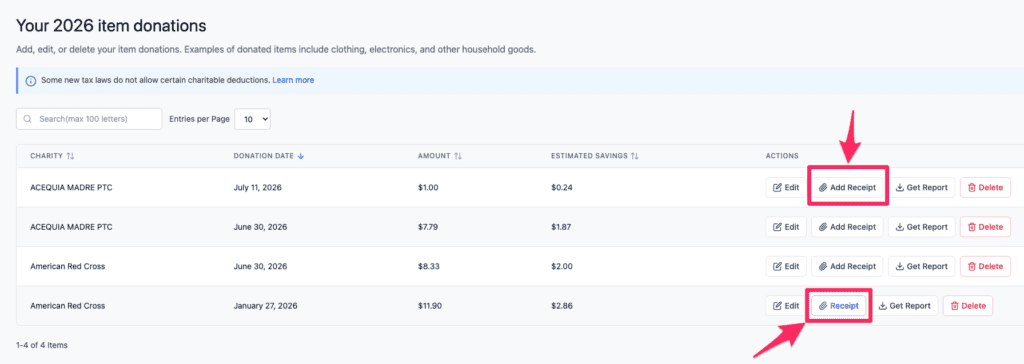
- Go to your list of item donations.
- Find the donation you want to document and select Add Receipt (or Receipt if one already exists).
- Upload your file, then Replace or Remove the existing one if needed. You’ll be asked to confirm before a receipt is removed.
See screenshots below:
Viewing an attached receipt
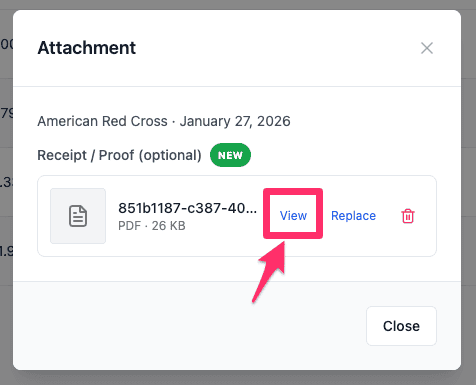
Select the View link, after you click “Receipt” or you’ve added a new file from “Add Receipt” to open your file in a full-screen viewer. Photos and PDFs both open in-app, so you never have to hunt for the original file.
Where your receipts show up
Your attachment travels with the donation into your records:
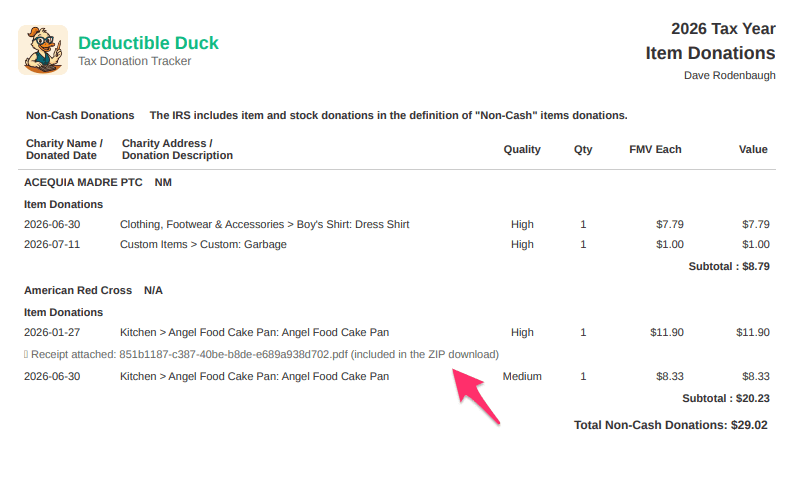
- Deductible Duck Item Donation Reports: Photo attachments are embedded directly into the generated PDF, and PDF attachments are noted on the form.
- ZIP export: When you export the ZIP file with everything, we’ll include all of your PDF or image receipts inside of the ZIP for easy access and storage.

Privacy
Your receipts are private. Only you can view the files attached to your donations, and they are never shared or made publicly accessible.
Frequently asked questions about donation receipts
Can I attach more than one file to a donation?
Not currently. Each item donation supports a single attachment. If you have multiple receipts, combine them into one PDF before uploading.
Can I attach receipts to stock, mileage, or cash donations?
Not yet. Attachments are currently available for item donations only.
What if my photo is very large?
Large photos are automatically resized so they upload smoothly. Just make sure the original file is under 10 MB.
Do I have to add a receipt?
No, attachments are optional. That said, keeping proof of your donations is strongly recommended in case you ever need to substantiate a deduction.
I don’t see the attachment option.
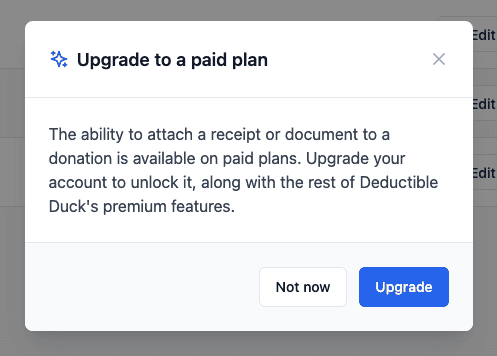
You can find them when you create a new Item Donation, or edit an existing item donation. However, receipt attachments are a paid feature. If you’re on a free plan, you’ll be prompted to upgrade when you try to add one.