
Deductible Duck Tax Reports – User Guide
You’re on the Tax Reports screen, where you have three main ways to prepare your donation data for tax time. Choose the option that best fits your needs below.
Jump To Option
- Export to TurboTax Mac or Windows (Desktop)
- Get Reports for my CPA or Get Reports for TurboTax ONLINE
- Download Records for Archive Purposes
Option 1: Export to TurboTax
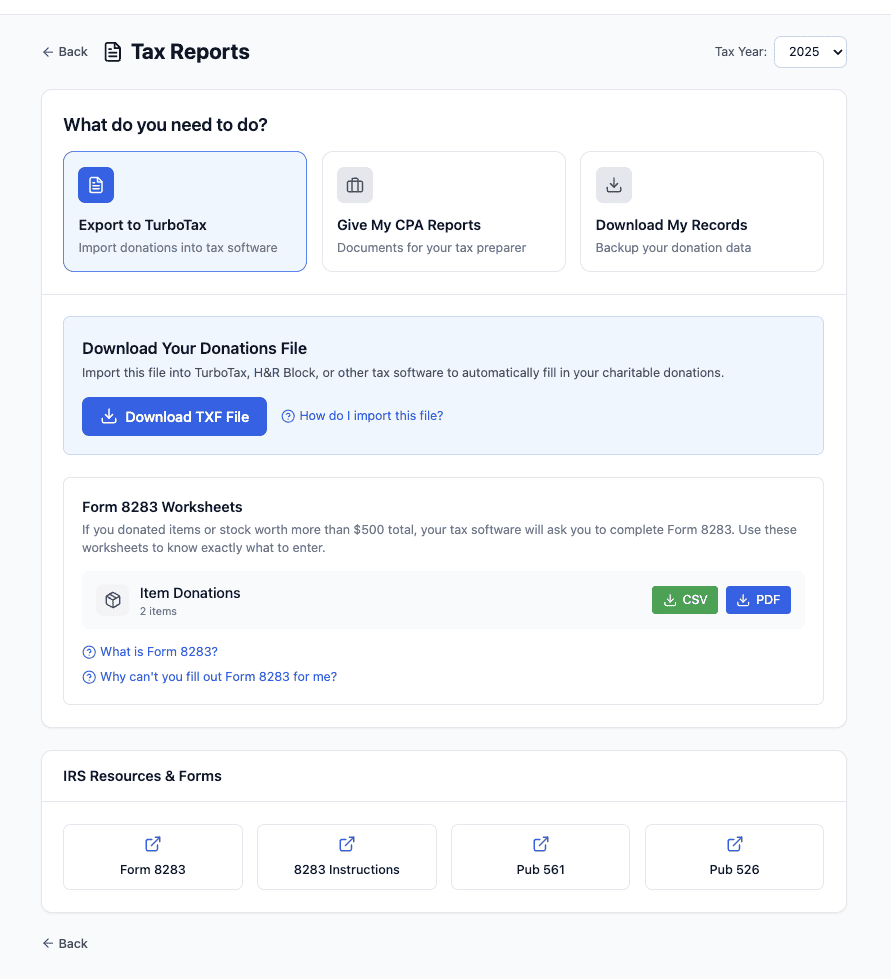
Why You Want To Use This
You’re exporting your donation records directly into TurboTax Desktop for Mac or Windows. If you’re using TurboTax ONLINE, you’ll want to use Option 2: Give your CPA Reports instead (see below)
When to Use This
Choose this option if you:
- Use TurboTax to file your taxes
- Are using either TurboTax for Mac or TurboTax for Windows (downloadable, desktop versions ONLY)
- Want to import your charitable donations into TurboTax
How It Works
When you select Export to TurboTax, your donation data will be formatted specifically for TurboTax’s import process using a TXF file format. This lets you skip manually entering each donation and get them into your tax return with just a few clicks.
Next Steps
- Click the Download TXF File button
- Your file will be downloaded to your local machine under Downloads or a similar folder
- Find the downloaded TXF file on your computer
- Next, follow the steps under How to Import Your Donations for TurboTax Mac or Windows.
Option 2: Give My CPA Reports
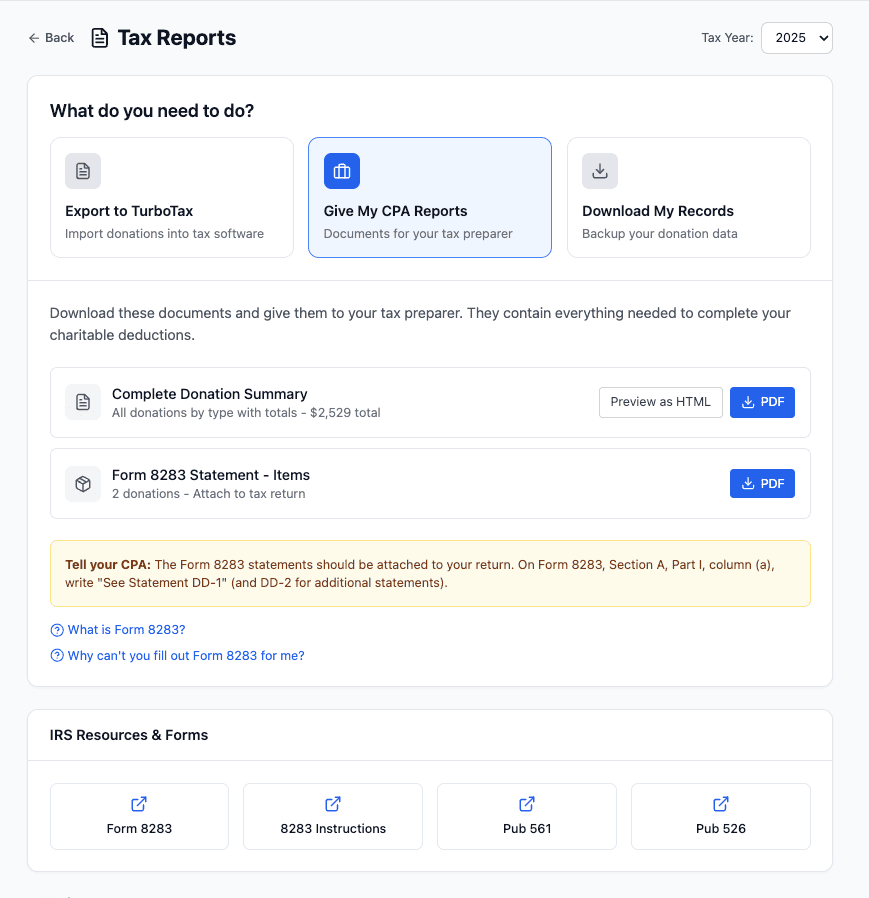
What You’re Doing
You’re generating a comprehensive report of your donations to share with your tax professional OR you’re using TurboTax ONLINE and you want to attach supporting documentation to your tax return.
When to Use This
Choose this option if you:
- Work with a CPA or tax preparer
- Prefer to have a professional handle your tax preparation
- Want to provide your CPA with organized donation documentation
OR - You’re using TurboTax ONLINE and you need the supporting documentation
How It Works
This option creates professional-formatted reports specifically designed for tax preparers. Your CPA can use these documents to enter your donations into their tax filing system or software of their choice. TurboTax online can upload these documents as “supporting documentation” for your donations that you enter as placeholders.
What You’ll Get
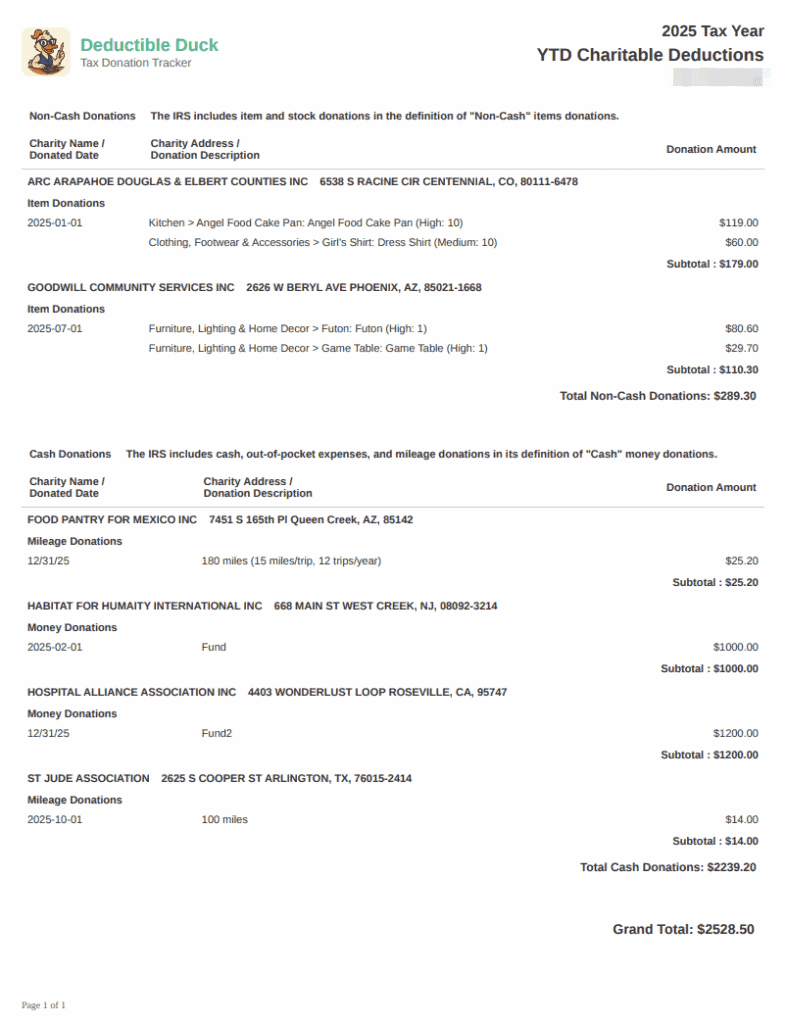
When you select this option, you’ll have access to multiple documents containing everything your CPA needs to complete your charitable deductions. There are two types of reports you can download–the Overall Donation Summary (one and only one) and the Form 8283 Summaries (one or more)
The Overall Donation report shows every charitable donation you made over the year, including the charity name, donation date(s), address, what you gave and the totals by charity. It might look like this:
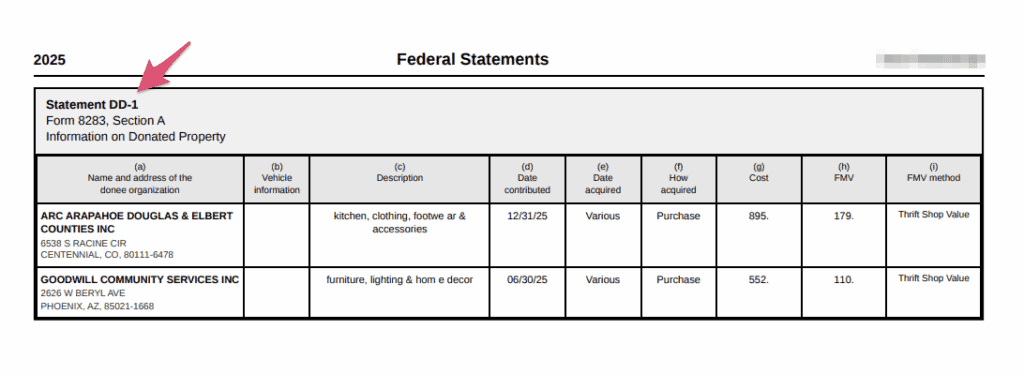
The Form 8283 Summaries are generated depending on how many item and stock donations you made. You may have one or more of these reports. Each one will be labeled with “DD-” and a number to follow it, so you can reference them uniquely in your tax return. For example, if you have enough donations, you might have two Form 8283 Summaries: DD-1 and DD-2, to cover all of the donations made during that year. Make sure you download ALL OF THESE REPORTS and read them carefully so you know which one to reference when using TurboTax Online!
A typical summary report for Form 8283 might look like this–notice the statement number on the upper left. This will also be referenced in the filename as well!
Next Steps
- Download EACH report as a PDF under this section (your reports may differ from the screenshot above)
- Find the files on your machine after download (usually under Downloads or a similar folder)
- If you’re working with a CPA, share those files with your CPA/tax professional
OR - If you’re using TurboTax online, follow the steps under How to Import Your Donations for TurboTax ONLINE.
Option 3: Download My Records
What You’re Doing
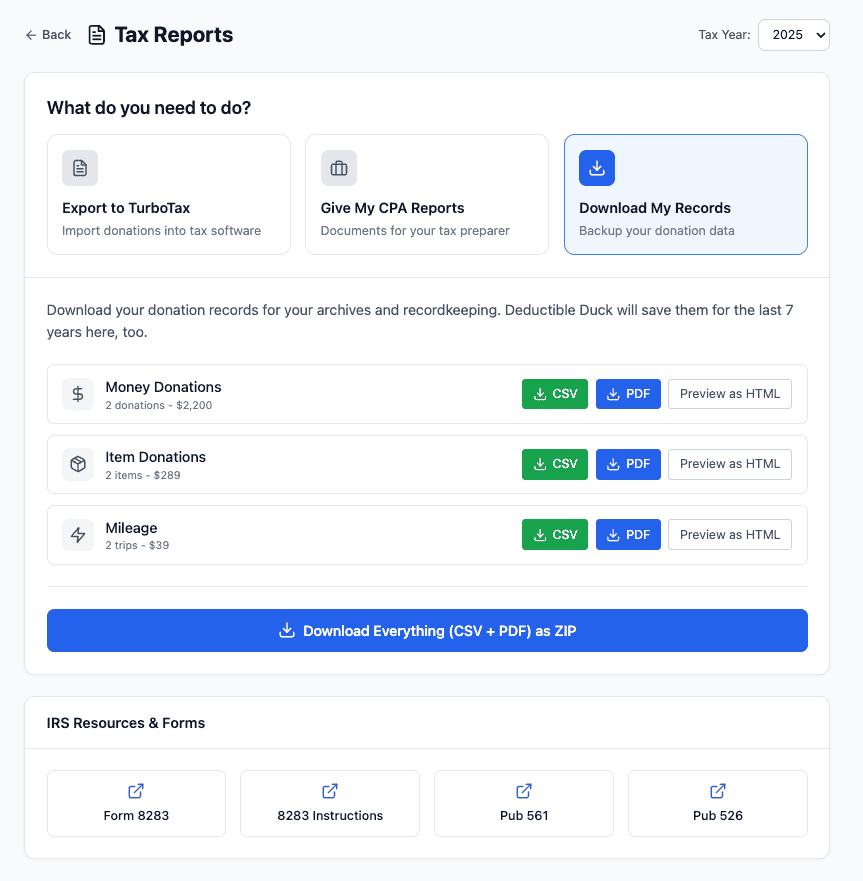
You’re downloading your complete donation records for your archives and recordkeeping. Usually, you do this after you’ve completed all of your donation tracking and entered everything into your tax software or your CPA is done with the return.
When to Use This
Choose this option if you:
- Want to keep a personal backup of your donation data for your records
- Need to archive your donation history
- Plan to store your tax documentation for future reference
- Want records available even after 7 years (Deductible Duck keeps them for you)
Important Note
Deductible Duck will save your records for the last 7 years, so you’ll always have access to your donation history even after the current filing year.
Your Records Breakdown
When you download your records, you get organized data by donation type. If you donate multiple types, you’ll see one report for each type.
Money Donations
- Number of donations, and the total you donated for that tax year
- Download options: CSV, PDF, or Preview as HTML
- Tracks all cash and check contributions to qualified charities
Item Donations
- Number of donations, and the total you donated for that tax year
- Download options: CSV, PDF, or Preview as HTML
- Documents your noncash charitable contributions (clothing, household items, etc.)
Mileage
- Number of donations, and the total you donated for that tax year
- Download options: CSV, PDF, or Preview as HTML
- Tracks your charitable mileage deduction (calculated at the IRS standard rate)
Stock Donations
- Number of donations, and the total you donated for that tax year
- Download options: CSV, PDF, or Preview as HTML
- Tracks your stock and securities you donated to charity
Download Options
For each donation category, you have three choices:
- CSV Format — Download as a spreadsheet file you can open in Excel or Google Sheets for further analysis or record-keeping
- PDF Format — Download as a professional-looking document that’s easy to print or share
- Preview as HTML — View the records in your browser before downloading to make sure everything looks correct
Download Everything at Once
At the bottom of your records section, use the blue Download Everything (CSV + PDF) as ZIP button to get all your records in one convenient file. This gives you both formats for all donation categories packaged together.
Next Steps
- Click the Download My Records card
- Review each donation category to see what you’ve contributed
- Choose your preferred download format for each category, or use the ZIP download to get everything
- Save the files to your computer for safekeeping
- Keep these records with your tax documents for at least 7 years
Additional Resources
Form 8283 Information
If you’ve made noncash donations totaling more than $500, you have Form 8283 documentation available. The app includes helpful resources and links to:
- What is Form 8283? — Learn what this form is and why you might need it based on your donation amounts in the current tax year
- Why can’t you fill out Form 8283 for me? — Understand the limitations of Deductible Duck and the TXF file transfer format.
Need Help?
Click the Help button in the top right corner for additional support, or use the information links provided on this page to learn more about tax forms and import procedures.
Navigation
- Use the Back button at the top or bottom of the screen to return to the previous section
- Select a different Tax Year from the dropdown if you need to view reports from another year
IRS Resources & Forms Section
At the bottom of your screen, you’ll find links to official IRS resources.
Available Resources:
- Form 8283 – Official IRS form
- Form 8283 Instructions – How to complete Form 8283
- Publication 561 – Determining value of donated property
- Publication 526 – Charitable contributions guide