
Items is where you track donations of physical goods like clothing, household items, electronics, furniture, and other goods. This screen shows all your item donations for the selected tax year.
What You’ll See
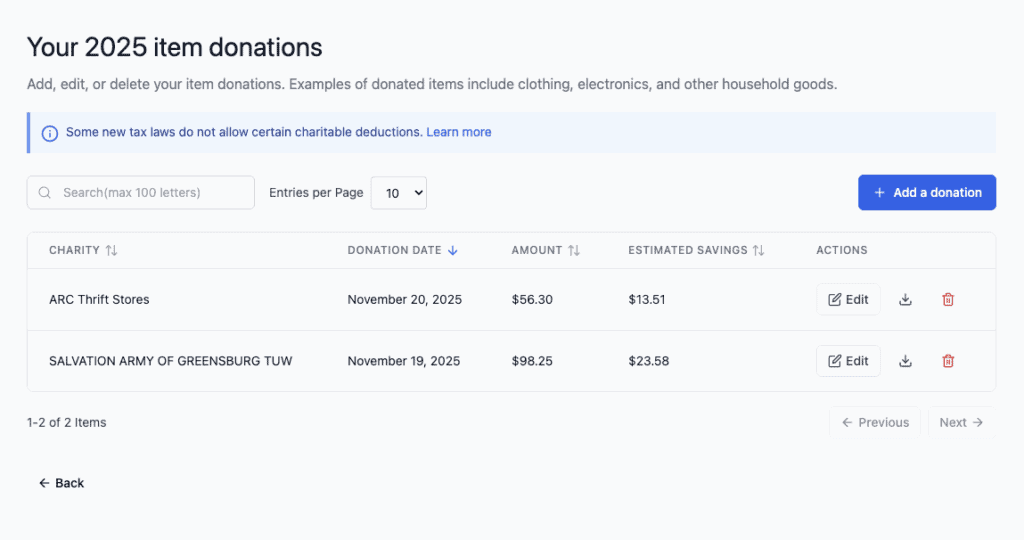
When you click View next to Items on the Dashboard, you will see:
- A search box – Find donations by charity name
- Column headers – Sort by Charity, Donation Date, Amount, or Estimated Savings
- List of donations – Each row shows one item donation
- Edit/Delete buttons – Modify or remove donations
- Pagination – Navigate through multiple pages if you have many donations
Understanding the Columns
Charity
The name of the organization you donated items to.
ℹ️ Tip: Click the charity name to see more details about that charity.
Donation Date
The date you donated the items (month, day, year format).
⚠️ Important: Make sure the date is in the correct tax year. Donations must be dated in the year you’re claiming them.
Amount
The estimated fair market value of the items. This is the price a willing buyer would pay for the items in their current condition.
ℹ️ Note: Deductible Duck provides estimated values for common items. If your items don’t match the list, you can enter a custom value.
Estimated Savings
Based on your tax bracket, this shows approximately how much you could save on taxes from this donation.
⚠️ Important: This is an estimate only. Your actual tax savings depend on your specific situation and the IRS rules.
Managing Your Item Donations
Viewing More Details
To see the complete details of a donation:
- Look at the row for that donation.
- Note the information in each column.
Editing a Donation
If you need to change information (for example, the date or amount):
- Find the donation in the list.
- Click the Edit button (pencil icon) on the right.
- Update the information as needed.
- Click Save Changes.
Deleting a Donation
If you entered a donation by mistake:
- Find the donation in the list.
- Click the Delete button (trash icon) on the right.
- Confirm that you want to delete it.
⚠️ Warning: Deletion cannot be undone. Make sure this is a mistake before deleting.
Searching for Donations
To find a specific donation:
- Click in the Search box at the top.
- Type the name of the charity.
- The list will filter to show only donations to that charity.
ℹ️ Tip: You can search for partial names (for example, typing “Green” will find “Acres Green Elementary”).
How to Add New Item Donations
To add a new item donation:
- Click the Add a donation button at the top right.
- Select Items from the dropdown menu.
- Fill in the form with:
- Charity name (required)
- Donation date (required)
- Item description (required)
- Estimated value or choose from Deductible Duck’s list
ℹ️ Tip: If you’re adding multiple items to the same charity, you can add them one at a time or group similar items into one donation entry.

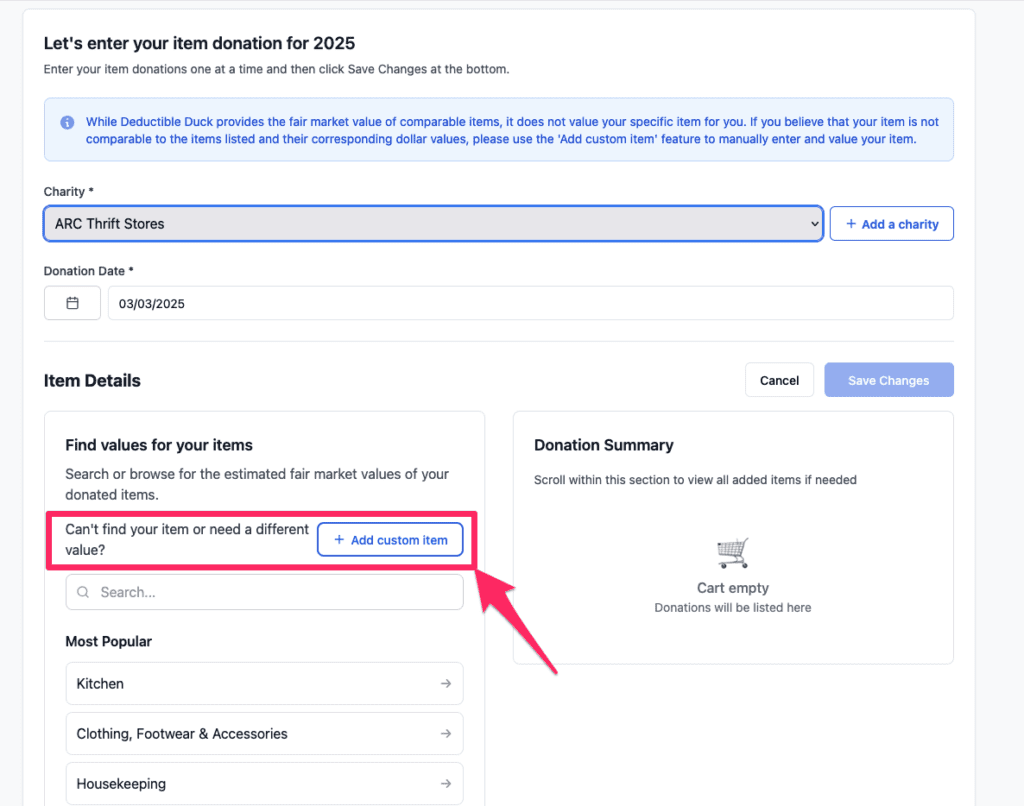
In addition, you can also add custom items when you’re not able to find the item in our database:
Important Reminders
Fair Market Value
The IRS requires you to claim the fair market value of items you donate – what a willing buyer would pay for them in their current condition.
⚠️ Important: If you believe your items are worth more or less than Deductible Duck’s estimate, you have the right to claim a different value. However, you should be prepared to justify this value to the IRS if asked. Deductible Duck’s FMV database contains ESTIMATES ONLY and it is on you, as the taxpayer and filer, to provide proper justification and documentation to substantiate your donation value. See IRS Publication 561 for more information.
Documentation
For donations over $500, the IRS requires:
- A completed Form 8283 (Section A)
- A description of each item
- The condition (Medium or High)
- The fair market value estimate
Qualified Charities
Only donations to qualified charities are tax-deductible. Generally, these include:
- Religious organizations
- Educational institutions
- Charitable organizations
- Certain veterans’ organizations
ℹ️ Tip: If you’re unsure whether a charity qualifies, ask the organization or check the IRS website.
Going Back
To return to the Dashboard, click Home in the left sidebar or click the Back button at the bottom of the page.