
Sometimes you’ll make a mistake or there’s a bug fix and you need to re-export the TXF data from Deductible Duck and get it back to TurboTax or other tax prep software. But if you already imported something before, you want to REMOVE that data first. Otherwise, you’ll have duplicate donations or incorrect data sitting in your tax return.
Here’s how to remove old imported files and start over.
How to Remove Old Imported Files (Windows)
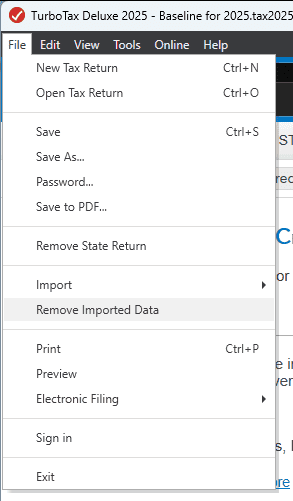
On your File Menu, select Remove Imported Data:
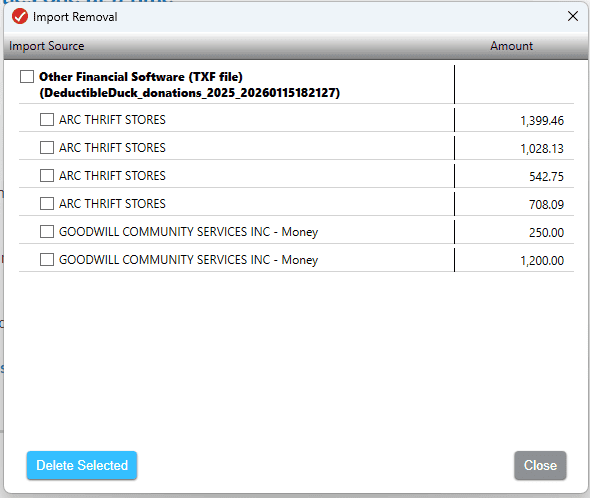
On the next screen, you’ll be asked to pick the TXF files from Deductible Duck to delete–be careful not to remove anything else!
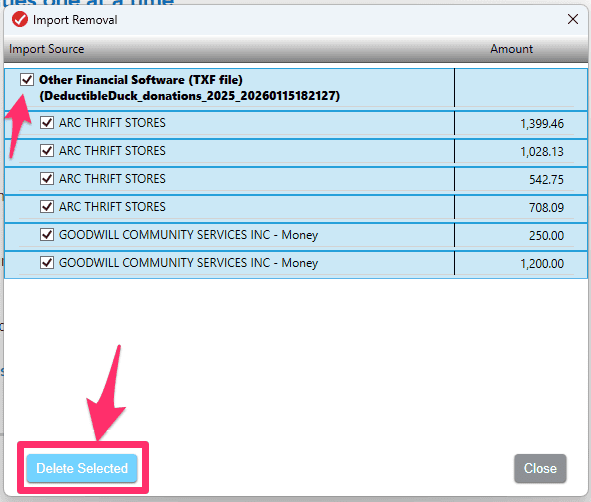
Once you select the top level item with “DeductibleDuck” in the filename, this will automaticallly highlight all donations in that file. Then click Delete Selected:
You’ll be asked to confirm the removal:

And once you click Yes, it’s done.
How to Remove Old Imported Files (Mac)
On your File Menu, select Remove Imported Data and then pick the name of the file you want to remove, like so. On Mac it looks like this:

At the end of the file, it will say “Remove All”. Click that.

You’ll be asked to confirm the removal:

And once you click Remove, it’s done.
Which files are older? How can I read that crazy filename format?
Deductible Duck uses the following format for the filename to help you tell which ones are OLDER and which ones are NEWER.
The file name is always: DeductibleDuck_donations_TAXYEAR_YYYYMMDDhhmmss.txf where the first part (DeductibleDuck_donations) never changes, TAXYEAR is the year of your tax export (e.g. 2025), and the long, ugly string of numbers is a timestamp of the year, month, day, hour, minute and second the file was exported.
The string can be decoded as follows: YYYY is the 4-digit year, MM is a two digit month, DD is the two digit day, hh is the two digit hour (in 24 hour/military time), mm is the two digit minute and ss is the two digit second. Any single digit number (e.g. 7) will be prefixed by 0 to make it double, like 07.
So if you export on Jan 12, 2026 at 4:28pm and 29 seconds, you’ll get: 2026 (year) 01 (month) 12 (day) 16 (4pm in 24 hour/military time) 28 (minutes) and 29 seconds or 20260112162829 as the timestamp.
If you have a file that has 20260109111215 as the timestamp, that file is OLDER than one shown above because it was exported on 2026-01-09 at 11:12:15am.
You can always re-import a file again if you accidentally delete it. You may, however, need to re-answer the questions in TurboTax about the donations, though. TurboTax gets rid of all the data associated with the donation when you do that.