
Before Starting
The process for handling TurboTax Online is VERY DIFFERENT than if you’re uploading your donations to TurboTax on the Desktop. If you’re using TurboTax Desktop on Windows or Mac, read this article here on how to use the TXF file instead.
TurboTax Online has two important limitations:
- TurboTax Online cannot import ANY files aside from your 1099s or W-2s. This means we can’t upload the TXF files that Deductible Duck generates, and that’s a problem. (TurboTax Desktop can do this, no problem)
- TurboTax Online does not have a way to upload supporting documentation to go along with “placeholder entries” for your donations (the main option we planned to support).
Because of these two limits, TurboTax Online can be used with Deductible Duck, but only in one way: You must print and mail your return to send to the IRS and include the printed forms that Deductible Duck generates for you.
Why Can’t I Import the TXF File into TurboTax Online?
There are limitations to using TurboTax online that you don’t have with the desktop versions. TurboTax online lacks the import function that you can get on TurboTax desktop. Many tax professionals and CPAs recommend using TurboTax desktop instead of using TurboTax online for this and other important reasons. If you’re stuck using TurboTax online, be aware that it cannot import ANY files from Deductible Duck (TXF). You will have to print and mail your return if you want to use donations from Deductible Duck.
First, complete all your donations for your current tax year.
After that, you’ll want to generate the CPA reports for Form 8283 from Deductible Duck using the instructions in our Tax Reports section. You’ll need that information here. Make sure you download ALL of the statements from that section! You’ll want to include the Overall Donation Report as well as the individual reports for Form 8283. See Tax Reports for more details.
If you use TurboTax Online, You’ll Have to PRINT AND MAIL Your Returns with Deductible Duck
TurboTax Online will use placeholder donations for your charitable contributions, but TurboTax Online DOES NOT ALLOW you to upload “supporting documentation”. That means in order to file your return using TurboTax Online, you either have to:
- Print everything out and mail the return, adding the supporting documentation you print as well.
- Repeat adding the donations by HAND in TurboTax Online, using Deductible Duck as a guide.
Neither is an attractive option, but you can also use TurboTax Desktop and that WILL SUPPORT uploading files. That option may not work for everyone, unfortunately.
Why Can’t I Add Reports from Deductible Duck to my TurboTax return?
There are limitations to using TurboTax online that you don’t have with the desktop versions and this is one of them. TurboTax online greatly restricts what files you can upload to your return–things like W-2s or 1099s and 1098s. These files are allowed and automatically entered on the return. The files provided by Deductible Duck are not recognized by TurboTax online, and they get imported as “Other”, which is simply ignored in your return. These documents are NOT SENT to the IRS when the return is e-filed, so you would lack supporting evidence of your donations if you did not have them.
Adding Supporting Documentation from Deductible Duck is REQUIRED
You must download ALL supporting statements from the Tax Reports section for Form 8283 Summaries (under the Give My CPA Reports tab). These reports MUST BE PRINTED AND ADDED TO YOUR RETURN AS SUPPORTING DOCUMENTS. If you fail to add all of the right reports, you could be subject to an audit with the IRS because you haven’t provided enough proof for your charitable donations. Deductible Duck is not liable for you failing to include the proper documentation with your tax return.
Are there alternatives to the import with Deductible Duck?
Yes, there is one. And it’s not good. You can re-enter ALL of your donations, by hand, into TurboTax. For obvious reasons, this isn’t a recommended solution since it allows you to make errors during the transfer, plus it’s a lot of extra effort AFTER you’ve tracked things in Deductible Duck already. Intuit could do better here and allow for file imports of either supporting documentation (like PDFs) or importing the TXF format for your tax forms (like you can on TurboTax Desktop). But neither is allowed in TurboTax Online, so unless you want to repeat the work you already did, your remaining option is below.
Any other recommendations instead of TurboTax Online?
Yes, you can switch over to using the TurboTax Desktop version and you can import your data from Deductible Duck using the TXF file we export the way you expect. Intuit imposed these frustrating limits on their software and it’s unfortunate, because this could be much easier than they make it.
Adding Donations from Deductible Duck into TurboTax ONLINE
1. Start by going to Deductions & Credits
Next, when you’re in TurboTax online, go to Deductions & Credits on the left, and select “Start” for Donations to Charity in the middle (see image below).

After that, select Yes for charitable donations:

3. Determine PLACEHOLDER entries for each type of donation (one per type)
Now, you’ll be adding a placeholder entry for each type of donation you made during the year. A placeholder is just a way to transfer the summary of your donations for that type into TurboTax so it can be added to Schedule A. Once it’s on Schedule A, you’ll refer to your “supporting documents” that Deductible Duck provides and include these with your return. Together, these will give the IRS the required information about your charitable donations for that tax year.
Example: Let’s say you had money, mileage and item donations for several charities during 2024 (to Goodwill, St Jude’s Research Center, and a local elementary school charity fundraiser–the actual charities don’t matter much in this example). Suppose you had a total of 12 donations over the year between all of these charities (7 different item donations, 3 mileage donations and 2 money donations). The item donations totaled up to $2,385. The money donations totaled up to $4,450, and the mileage donations ended up at $116.
In this example, we will have THREE placeholder donations: one for all items, one for all money, and one for all mileage.
Each placeholder donation will be the sum total of all donations for that type. So let’s suppose you had 7 item donations which totaled up to $2,385. You would have a placeholder donation for items @ $2,385 for the entire year.
Your placeholder donations look like these–you enter ONE placeholder for all donations of that type.
| Enter This Description | Select This Type of Donation | Enter This Date | Enter This for the Amount |
|---|---|---|---|
| Cash donations – multiple charities (see attached statement DD-X) You will change “X” to the actual statement generated–see Tax Reports for the Form 8283 Summary Report info | Cash | Last day of the tax year, for 2025 use “12/31/2025” | The amount of ALL money donations you made in Deductible Duck for that tax year, e.g. $4,450.00 in our example |
| Non-cash property donations – household goods & equipment (see attached statement DD-X) You will change “X” to the actual statement generated–see Tax Reports for the Form 8283 Summary Report info | Items or Stock | Last day of the tax year, for 2025 use “12/31/2025” | The amount of ALL item donations you made in Deductible Duck for that tax year, e.g. $2,385.00 in our example |
| Donated securities – FMV at date of gift (see attached statement DD-X and Form 8283) You will change “X” to the actual statement generated–see Tax Reports for the Form 8283 Summary Report info | Items or Stock | Last day of the tax year, for 2025 use “12/31/2025” | The amount of ALL stock/security donations you made in Deductible Duck for that tax year, e.g. $0 in our example |
| Charitable mileage (see attached statement DD-X) You will change “X” to the actual statement generated–see Tax Reports for the Form 8283 Summary Report info | Vehicle Use | Last day of the tax year, for 2025 use “12/31/2025” | The amount of ALL stock/security donations you made in Deductible Duck for that tax year, e.g. $116 in our example |
In our example here, I would enter 3 placeholder donations–one item, one money and one mileage to match my donations from 2025. I would NOT enter anything for stock because I did not donate any stocks or securities in 2025.
4. Enter the Placeholders in TurboTax
Now that you know what to enter, create your entries in TurboTax, one for each type of donation you made in your tax year.
From this screen:
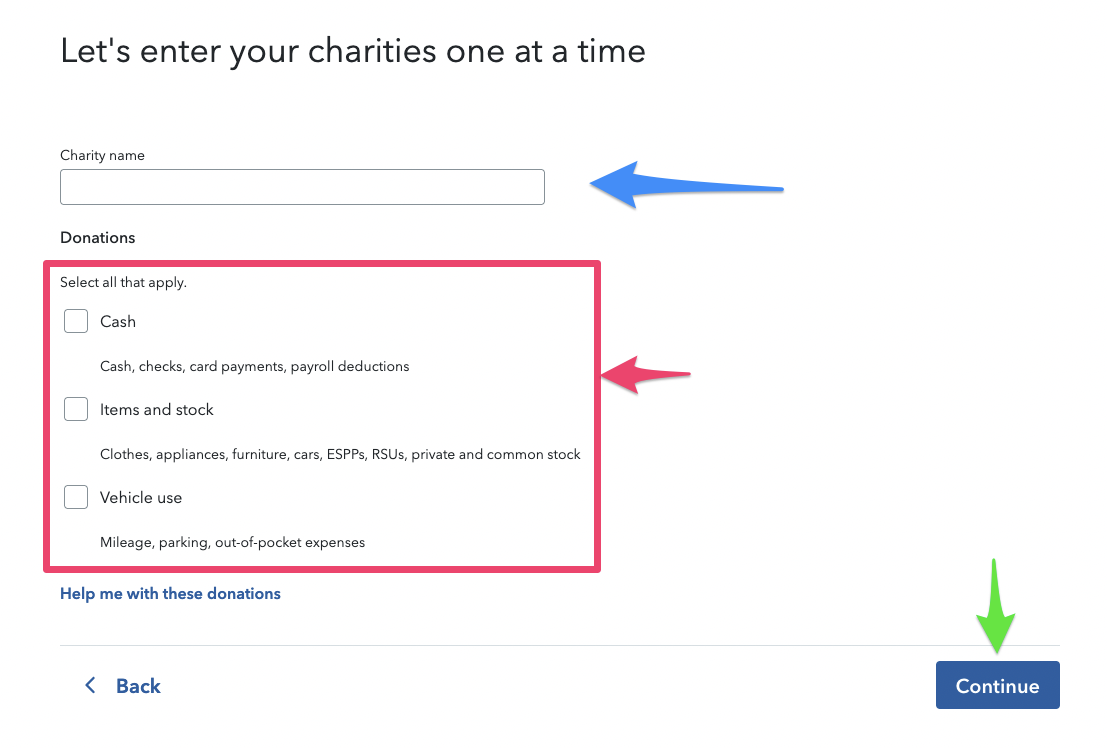
- Where the blue arrow is, enter your Description above for the type of donation
- Next, check the TYPE of donation, according to the table (pick only one!)
- And then click the green Continue button to enter this type of donation (SEE DETAILED STEPS AFTER THIS)
- Repeat steps 1-3 for each type of donation you have (item, money, mileage or stock)
- You’re done!
5. Print and mail your return to the IRS
If you follow these steps, you won’t be able to e-file your return anymore, so you must do the following:
- Print out your tax return when you’re ready. Follow these instructions to do that.
- Include the Form 8283 Statements from Deductible Duck (Statement DD-1, DD-2, etc)
- Mail the return to the IRS before the tax filing deadline
Detailed Item Placeholder Example
Let’s walk through all of the steps to enter one of my placeholders–the item donations from 2025.
In my example, I would enter the item donation like this on the first screen (copying the description from the table above):

Make sure you reference the statement correctly!
The statement DD-1 in this example matches a report exported from Deductible Duck under the Tax Reports section, where I select “Give my CPA Reports”. Be sure to download and reference the correct report!
Now you need to enter the type of donation, date (last day of the tax year) and value from Deductible Duck’s total:

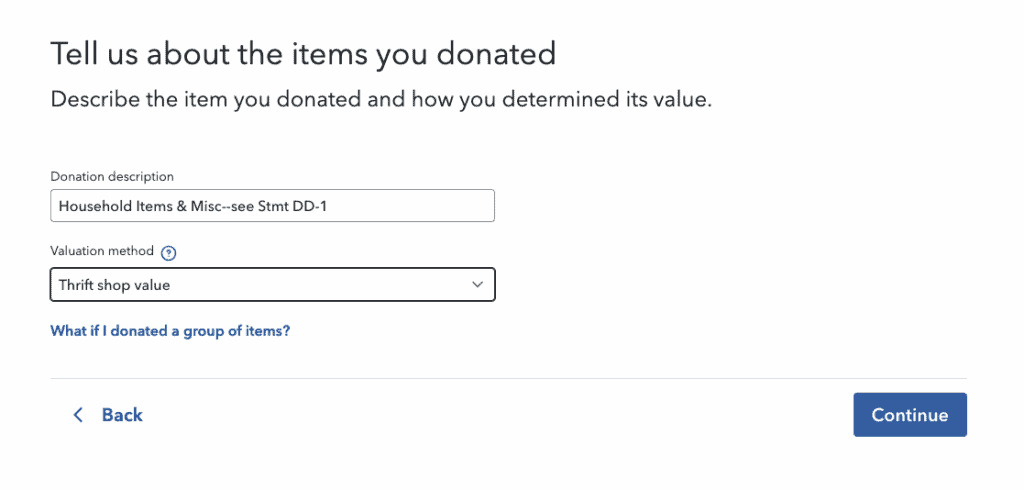
Next, you’ll be asked about describing the donation and the valuation method.
In the description, reference the Statement you download from Deductible Duck. My example below shows the statement as DD-1, yours may differ depending on the download order.
Valuation method should be either “Thrift Shop Value” or “Comparable Sales” as these are the methods Deductible Duck uses to determine the FMV estimates in our database.
If the donation is over $500, you’ll be asked a series of questions about purchase date, purchase value and length of ownership. For purchase value, you will likely not know the exact amounts and the IRS understands this is a common problem. Most people don’t remember what they bought items for. A good rule of thumb, per IRS regulations and existing practices of CPAs and other software is that the thrift shop value of your item is between 10-20% of its original, retail value. (TurboTax’s documentation also says this). To estimate the purchase price, take the donation amount from Deductible Duck and DIVIDE by either 0.10 (10%) or 0.20 (20%). 10% is more conservative, so continuing our example, I divided $2,385 by 0.10 and put that into Purchase Price:
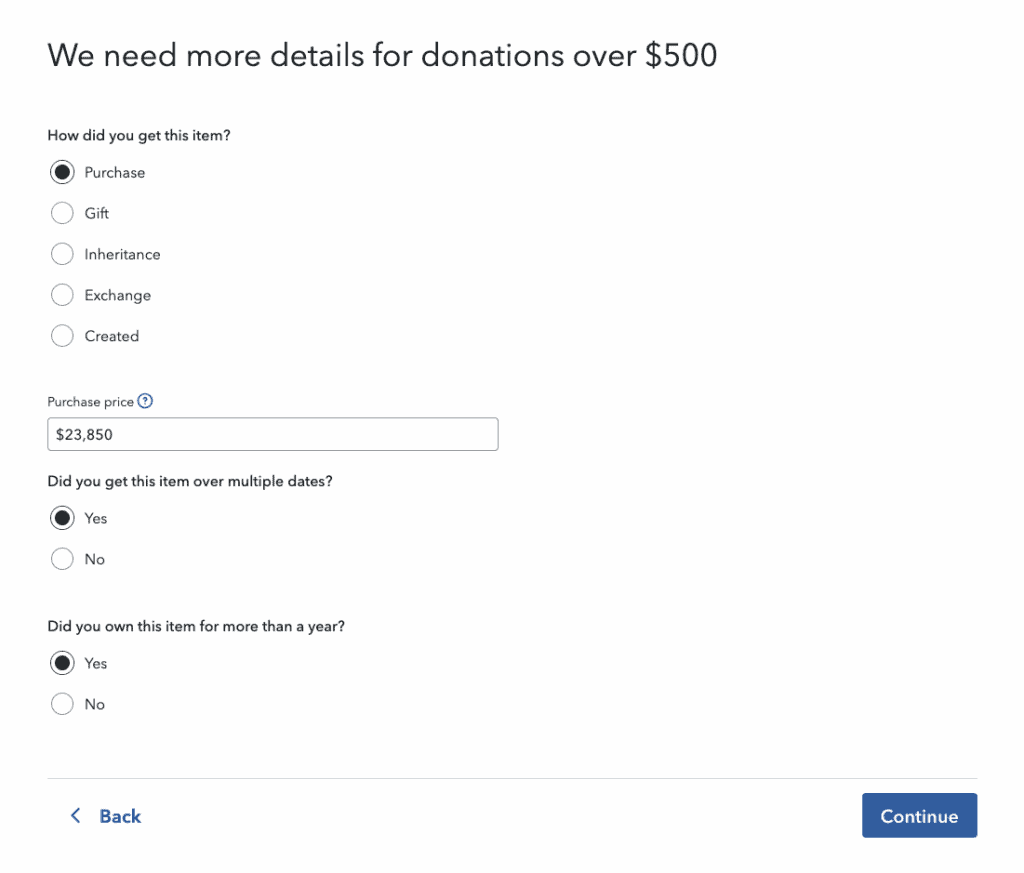
Because this is a placeholder summary item, answer “Yes” to multiple dates and “Yes” to more than a year, because your items are likely old and mixed in purchase dates.
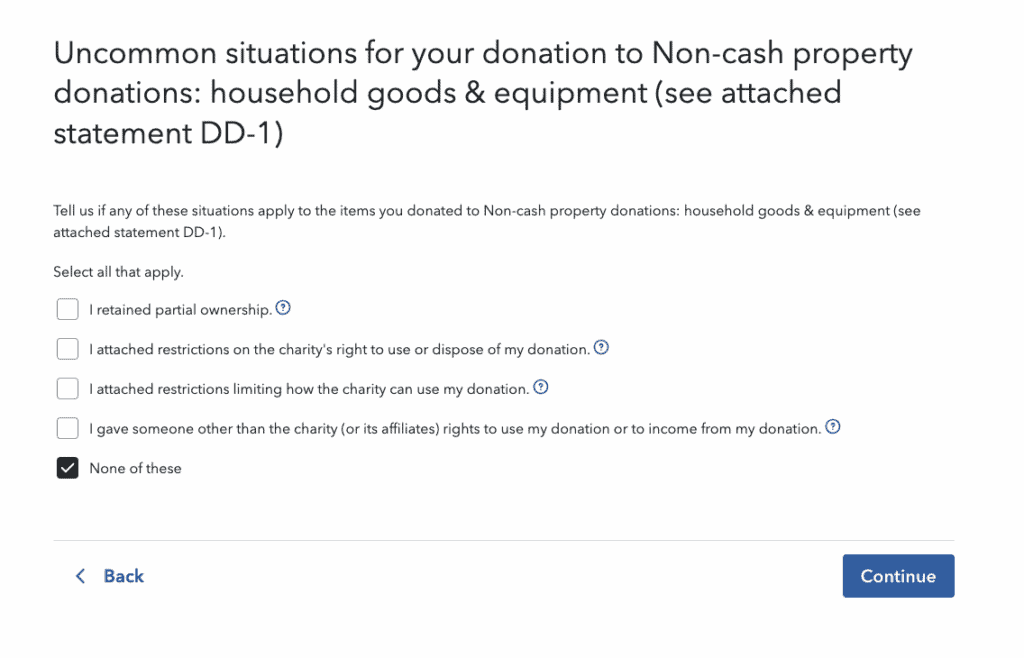
Next, you need to answer the “Uncommon Scenarios”, which is most likely this answer, but read it carefully and determine if those apply to your case or not:
And lastly, if the donation is over $500 (most likely), you’ll be asked to enter an address for this charity. Because it’s a placeholder, you don’t have one, AND Deductible Duck puts the charity’s address in the Statement directly, you can just reference the statement one more time by number:

And that’s it–you’re done with that placeholder:

IMPORTANT: Repeat these steps for your other placeholder items (up to 4 total, most people will have 1-2).
What if I make a mistake and need to change this data?
No problem! Go back to your Deductions & Credits section, select Donations to Charity and then edit the placeholder donation(s) you created before. You can edit every aspect of the donation by re-following the process above.
Important Reminder
Remember: You have to print and mail your return now that you added your Deductible Duck information as placeholders.